
Stage racing is how most oval leagues run: the race is split into stages, and the top finishers at the end of each stage earn bonus points toward the championship. Until now that meant someone on staff scrubbing through a replay, writing down the running order at lap 60 and lap 120, and adding the points by hand. GridChief now does it for you. Stage results come straight from the iRacing lap data of the race you import, they show up on the results page and in the standings, and you can still correct anything by hand when your rules call for it. Stage points are part of GridChief Pro and work on oval and dirt oval tracks.
How a stage is scored
A stage is scored exactly the way iRacing scores a race finish. The moment the leader completes the stage's end lap, every car is scored at its next crossing of the start/finish line, ranked by laps completed and then by the order they crossed. Lapped cars count, so a driver one lap down is placed behind everyone on the lead lap, just like at the checkered flag. Because the order comes from iRacing's own line crossings, there is nothing to review on a normal night: import the race and the stage results are already there.
Step 1: Set your stage points table
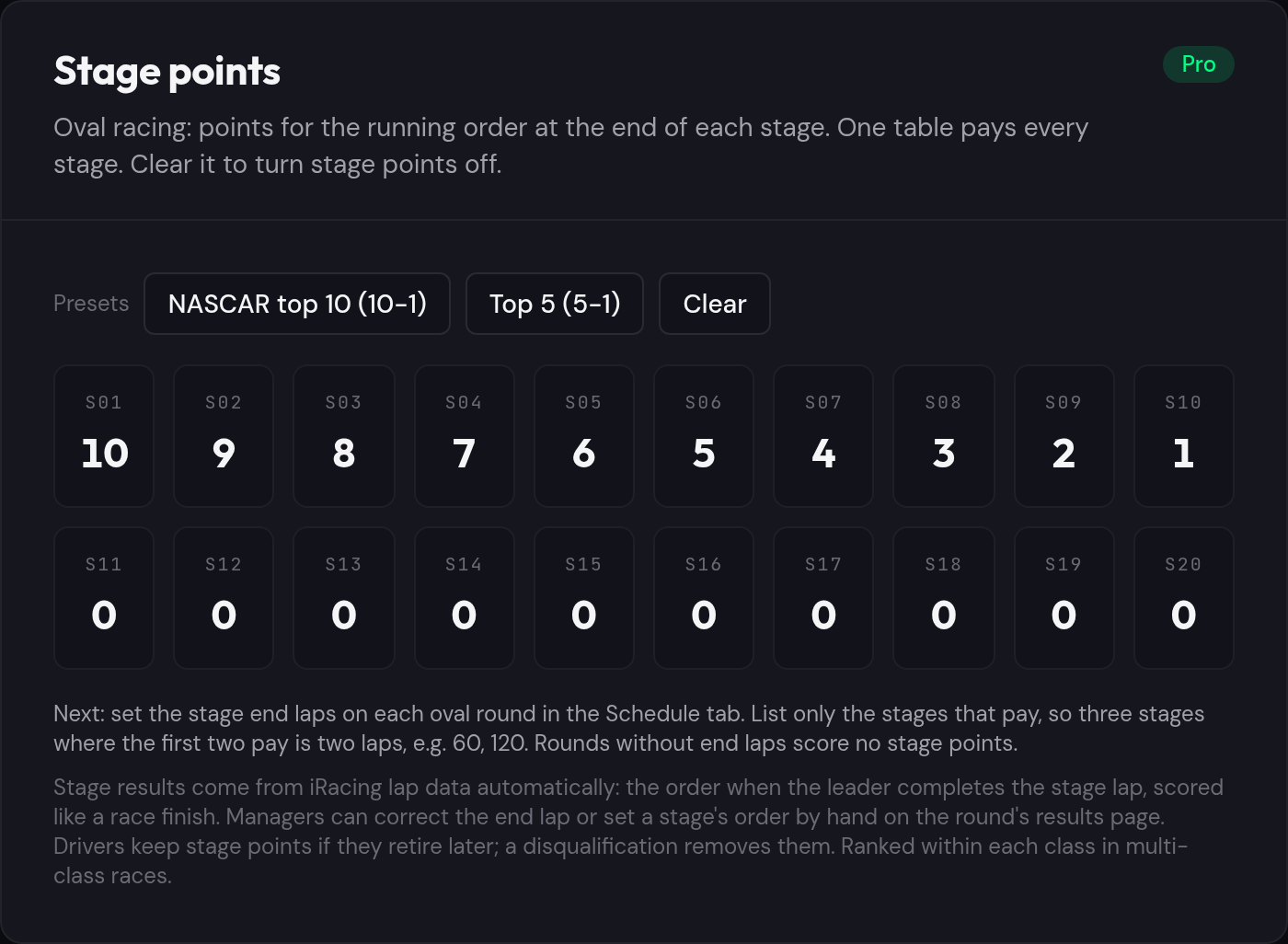
Go to Settings and open the Points System tab. The Stage points card has two presets: NASCAR top 10 pays 10 points for the stage winner down to 1 point for tenth, and Top 5 pays 5 down to 1. You can also type your own values. One table pays every stage, and positions past the end of the table score nothing, so a Top 5 table suits a 20-car field. Save your points system when you're done. To turn stage points off later, clear the table.
Step 2: Enter the stage end laps for each round
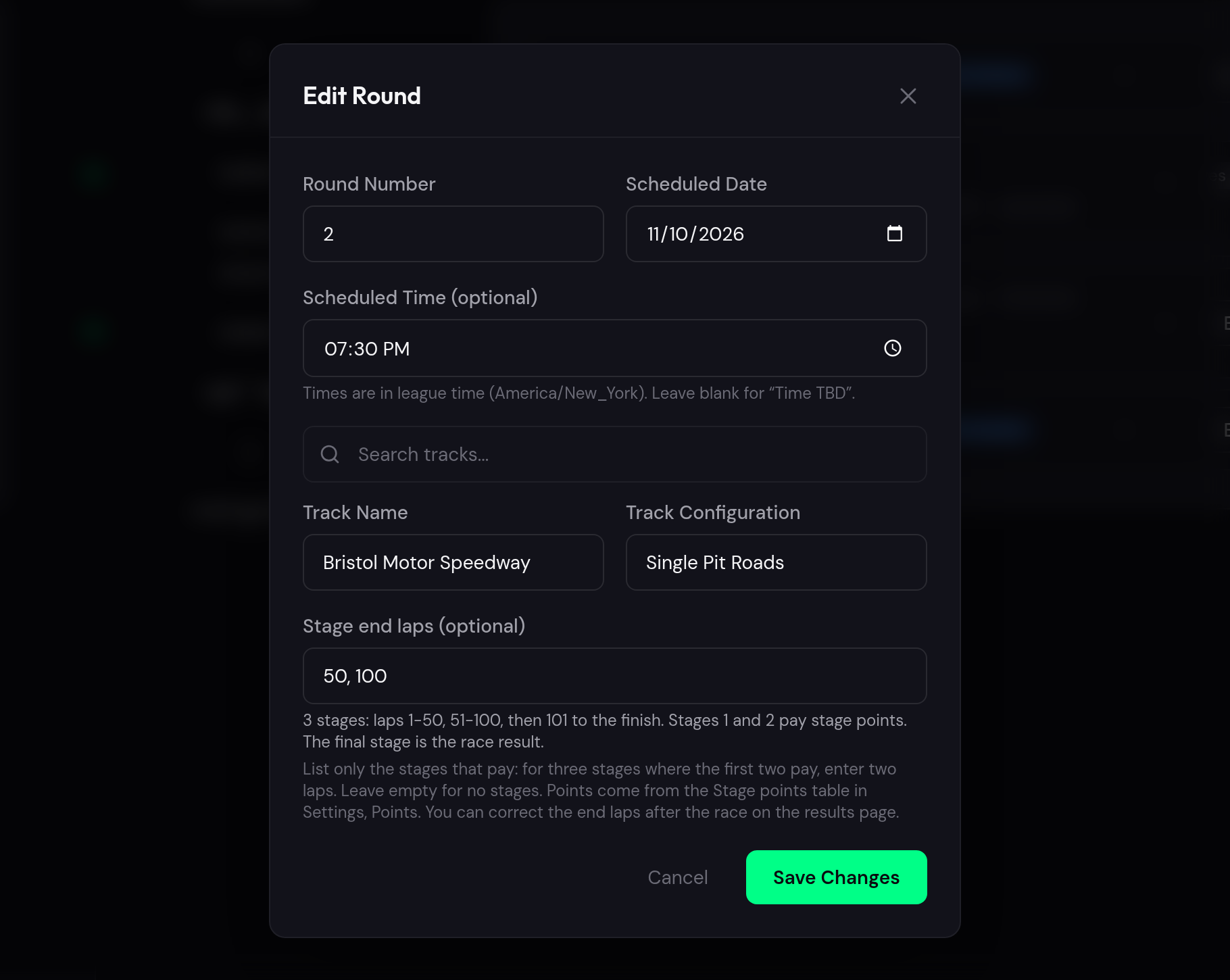
Open the Schedule tab and edit an oval round. The Stage end laps field takes the lap each paying stage ends on, separated by commas. List only the stages that pay: the final stage is the race itself, so a race with three stages where the first two pay is just two laps, for example 50, 100. As you type, a preview spells out how the race splits: "3 stages: laps 1-50, 51-100, then 101 to the finish. Stages 1 and 2 pay stage points." Different tracks can have different stage lengths, and rounds without end laps simply score no stage points.
Step 3: Check your schedule
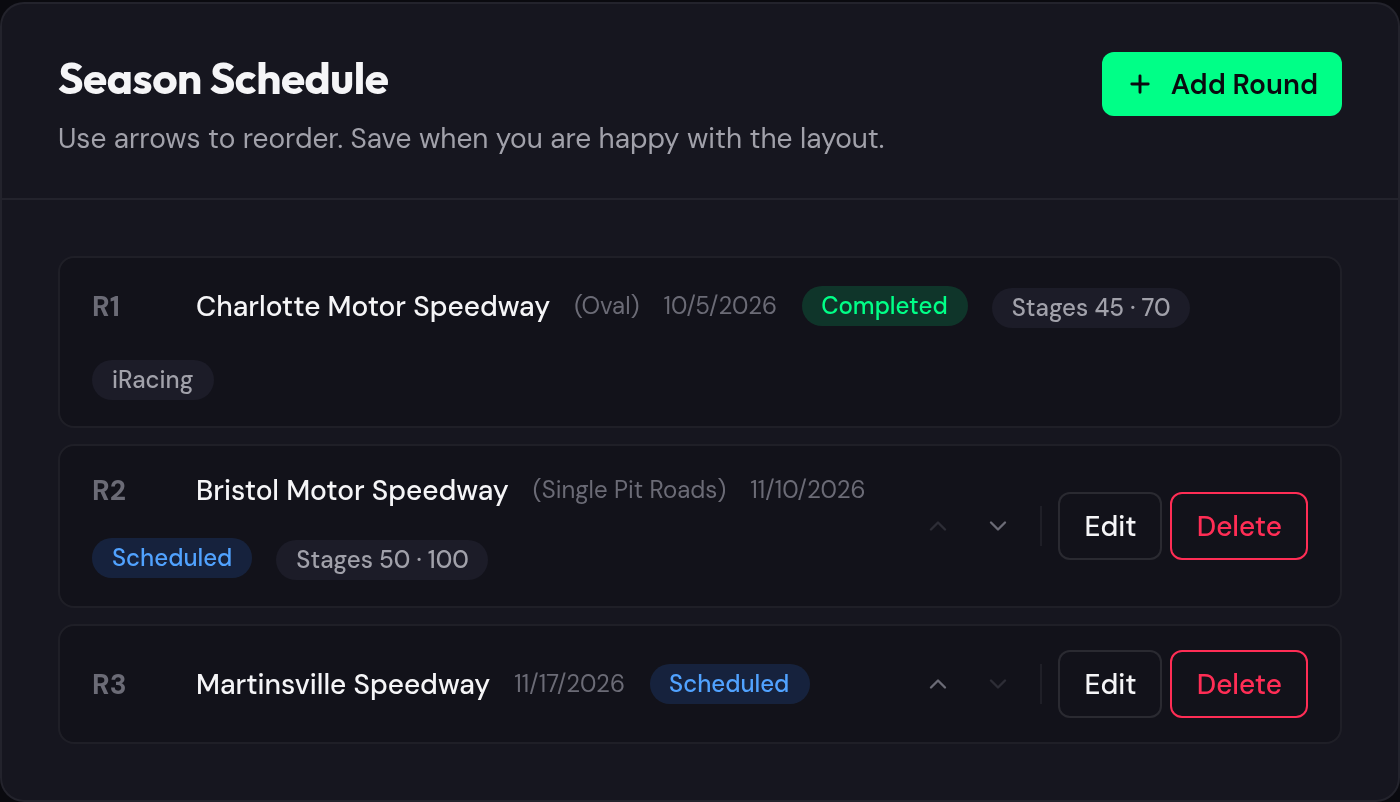
Rounds with stages get a Stages badge in the schedule, such as Stages 50 · 100, so you can see at a glance which races are set up. Hover the badge to see the full stage breakdown. If you forget a round before race night, no problem: you can set the end laps on the round's results page after the race too.
Step 4: Import the race as usual
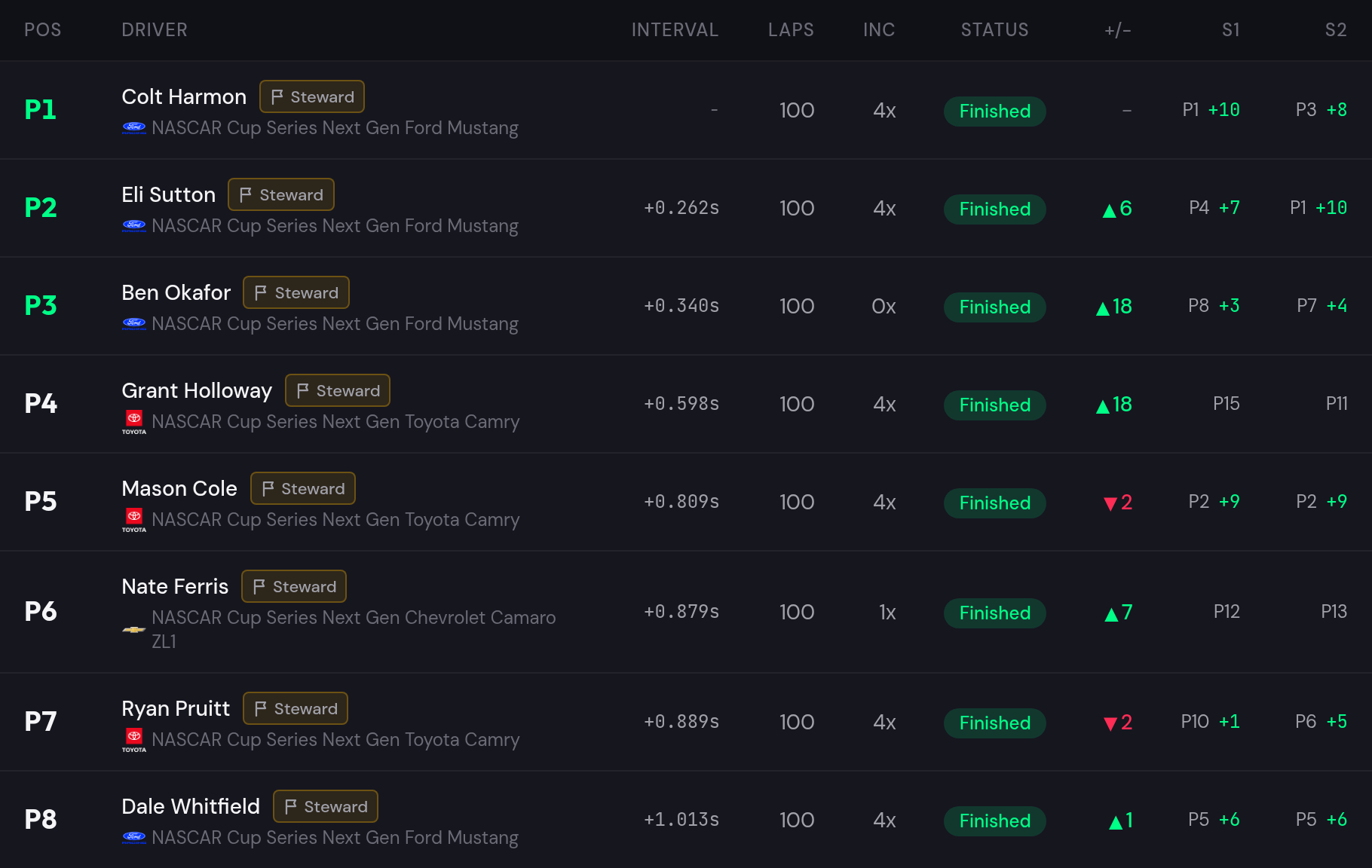
After the race, paste the subsession ID and import it like any other round. GridChief works out every stage from the lap data and adds the stage points to each driver's bonus points for the round. The race results table gains S1 and S2 columns showing where each driver was at the end of each stage and what it paid. In the example below, the race winner also won stage 1, while the driver who finished P5 picked up 18 stage points by running second at both stage ends.
Step 5: Review cautions in the Stages panel
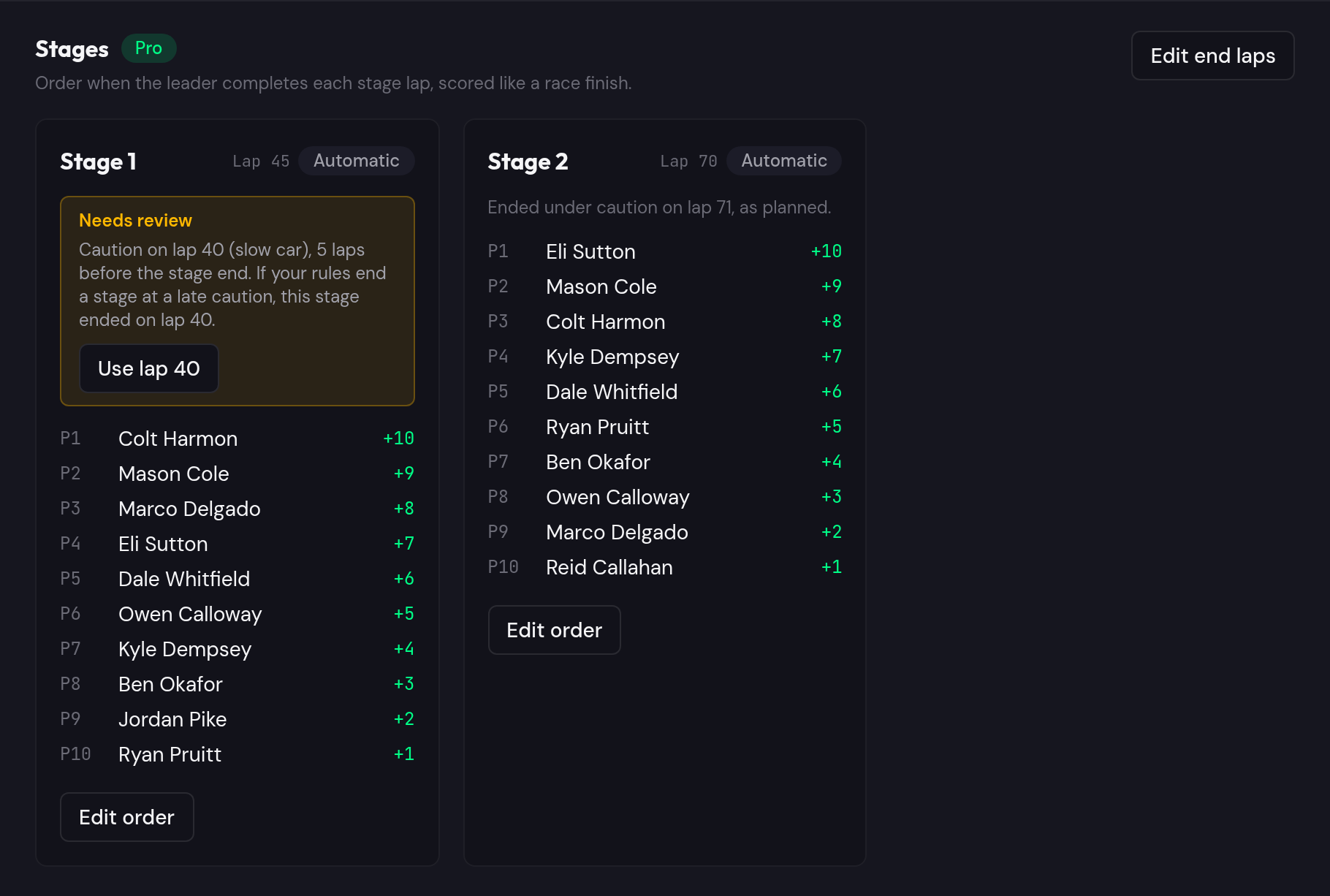
Below the results, the Stages panel lists the top finishers of each stage, the lap it ended on, and whether the order is Automatic or Manual. GridChief also reads the race's caution log from iRacing and checks every stage against it. If a caution came out 1 to 10 laps before a stage end, the stage is marked Needs review. Some leagues end a stage at a late caution the way NASCAR does, others run the stage to its planned lap under yellow, so GridChief never decides for you. In this race a caution came out on lap 40, five laps before the planned stage end on lap 45. If your rules end the stage there, click Use lap 40. If not, leave it as it is. When a caution starts on the stage lap or the lap after it, that is the normal stage break, and the panel simply says the stage ended under caution as planned.
Step 6: Apply the fix in one click
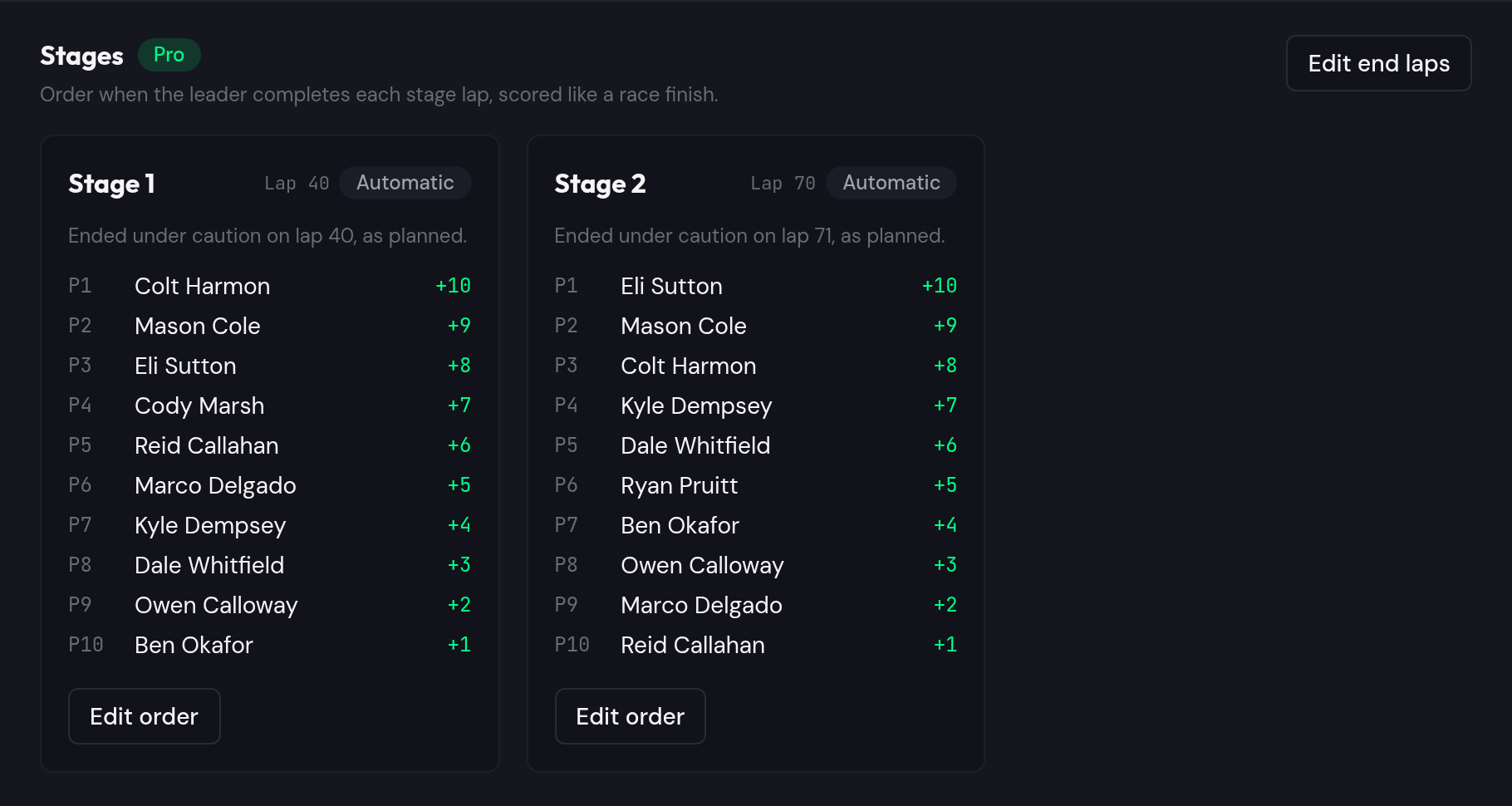
Clicking Use lap 40 moves the stage end, recalculates the stage order at that lap, and updates the standings straight away. You can also change the end laps for any stage yourself with Edit end laps, for example when race control ended a stage early for a reason that isn't in the caution log. The import message lists any stages that need review, so you won't miss one.
Step 7: Set an order by hand when you need to
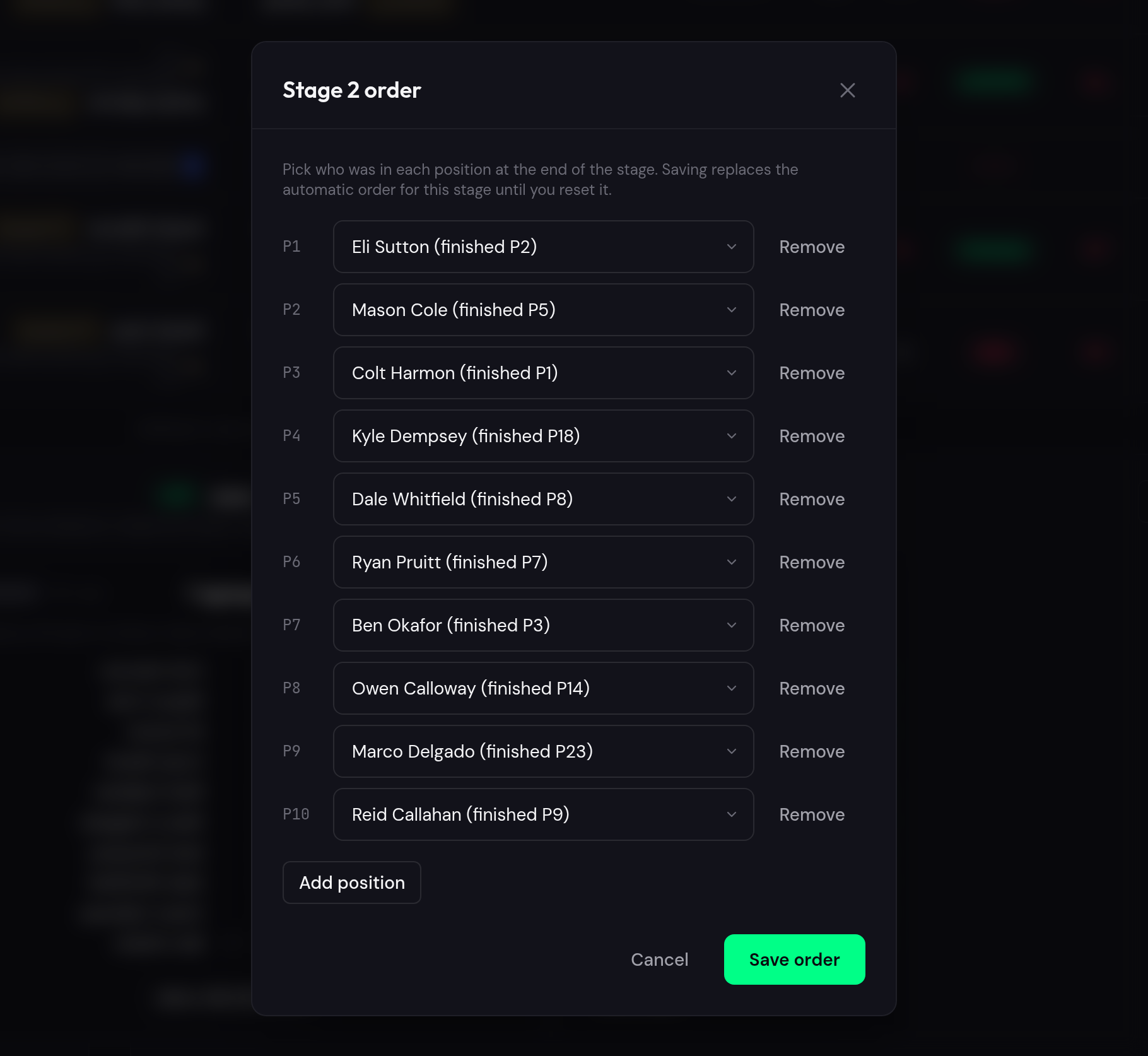
Sometimes the running order on track isn't the result your stewards want, or a round has no lap data at all. Edit order opens the stage's order with every driver labeled by where they finished the race. Pick who was in each position, add or remove positions, and save. A manual order replaces the automatic one for that stage only and is marked Manual in the panel. Reset to automatic drops it and goes back to the lap data. There is no need to export results and add stage points in a spreadsheet anymore.
Step 8: What drivers see
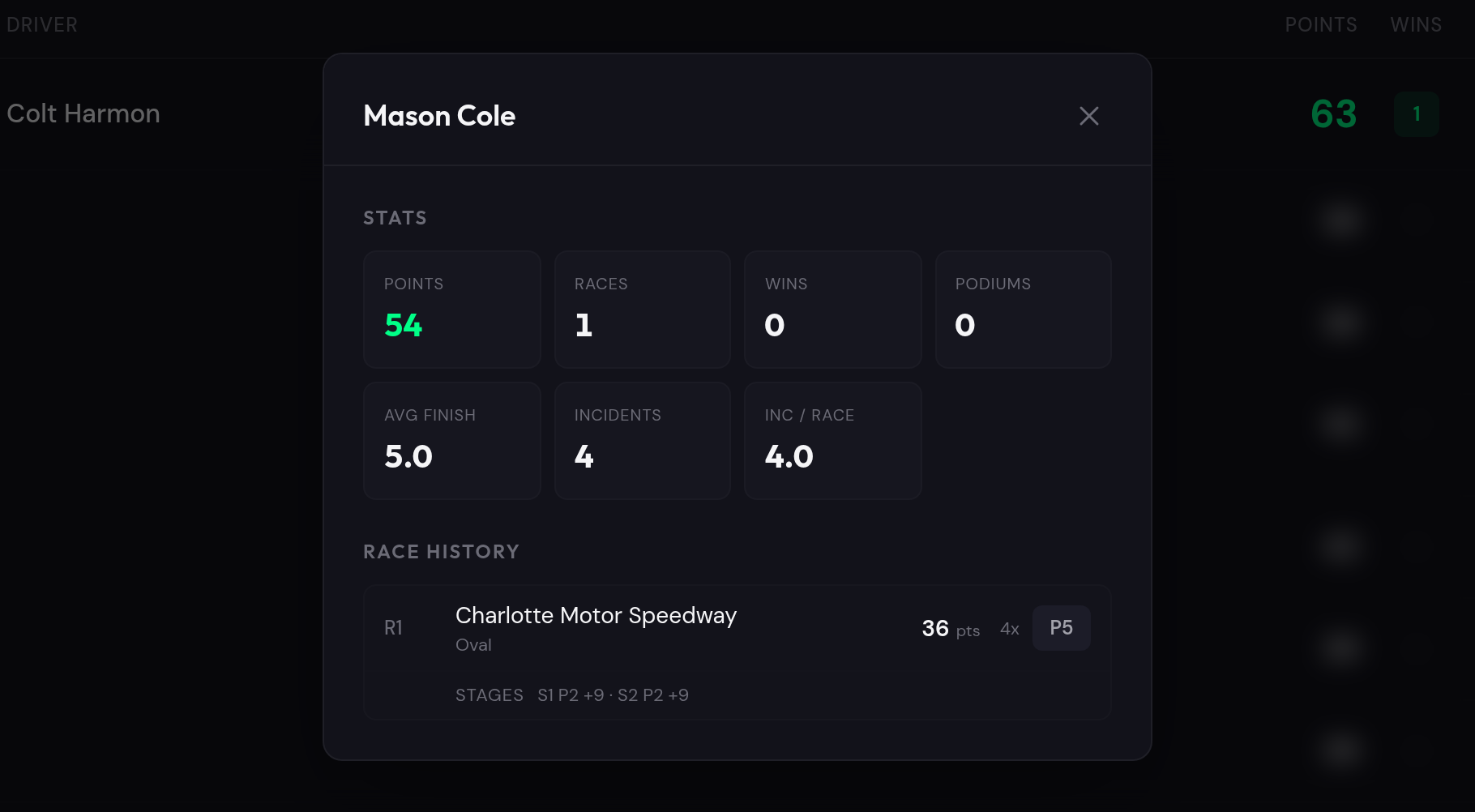
Stage points flow into the championship standings automatically. On the public standings page, a driver's card shows the stage results for each round, like S1 P2 +9 · S2 P2 +9, so nobody has to ask why a P5 finish moved them up the table.
The rules, in short
Stage points are paid once per round, and on the Feature for heat-format rounds; heats themselves don't have stages. Drivers keep stage points they earned even if they retire later in the race or fall short of the 50% laps rule. A disqualification or a league ban removes a driver from the stage and everyone behind moves up. In multi-class seasons, stages are ranked within each class. If a race ends before a stage's end lap, that stage scores nothing. Rounds imported before caution checks existed can be re-imported to fetch their caution log.
Get started
If you run an oval league on GridChief Pro, stage points are ready now: pick a preset in the Points System tab, add end laps to your oval rounds, and import your next race. Full details are in the Help page under Points System, Schedule and Importing Race Results. If your league runs stages in a way we haven't covered, tell us in Discord. We'd like to hear about it.